
Download Google Keep – Free, Secure Note‑Taking App for Windows
Overview
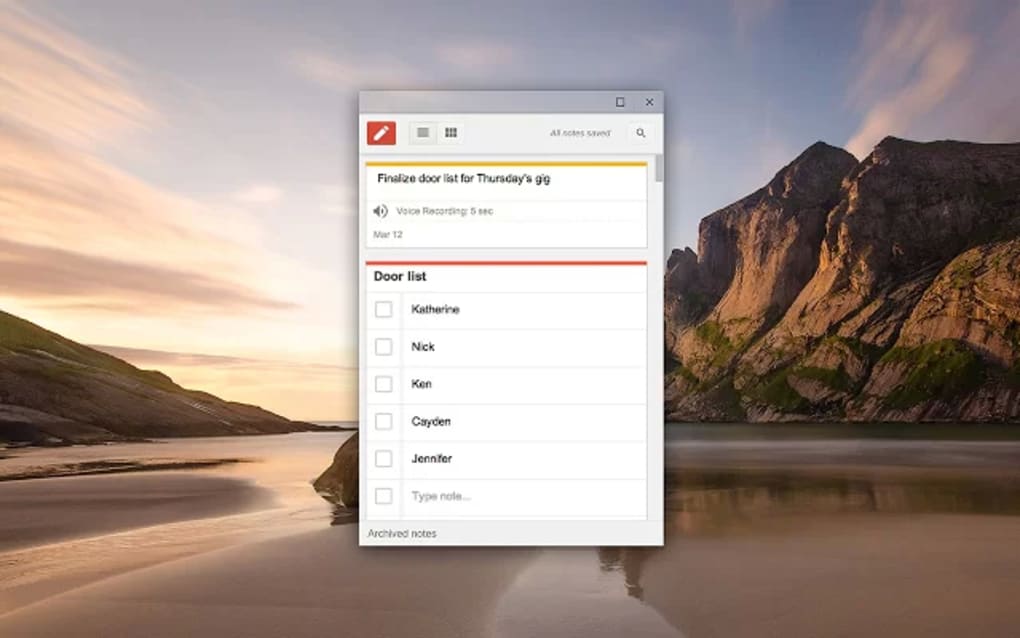
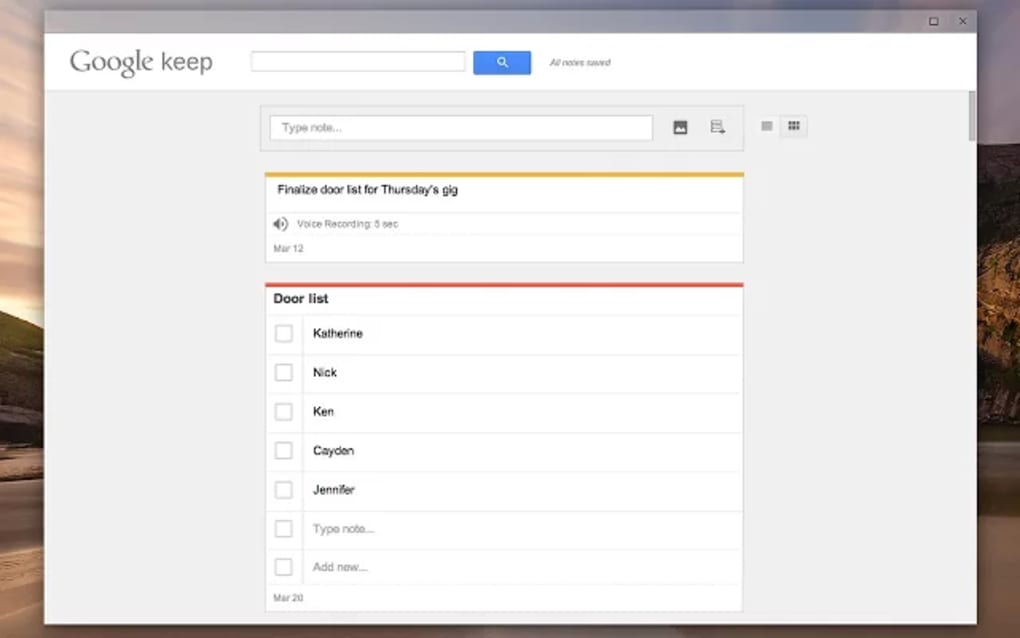
Google Keep is Google’s lightweight, cloud‑based note‑taking solution that blends simplicity with powerful collaboration tools. Designed for both casual users and professionals, Keep lets you capture ideas, create to‑do lists, record voice memos, and even extract text from images with built‑in OCR. Because every note is stored in Google Drive, you can access your content from any device that runs a modern browser or the dedicated Windows app.
The real strength of Keep lies in its tight integration with the Google Workspace suite—drag a note directly into Docs, Sheets, or Slides, or convert it into a fully editable Google Doc with a single click. Real‑time sharing means teammates can view, edit, and comment on the same note simultaneously, turning a simple list into a collaborative brainstorming board. Whether you’re a student gathering research snippets, a project manager tracking tasks, or anyone who needs a quick place to dump thoughts, Google Keep offers a secure, always‑synced environment that feels more like a digital sticky‑note board than a traditional notebook.
Key Features, Installation & Practical Use
Feature Highlights
- Instant note creation with text, voice, image, or drawing inputs.
- Automatic cloud sync across Windows, Android, iOS, and web browsers.
- Real‑time collaboration via the “Collaborator” button.
- Powerful OCR that converts image text into editable content.
- Seamless drag‑and‑drop integration with Google Docs, Sheets, and Slides.
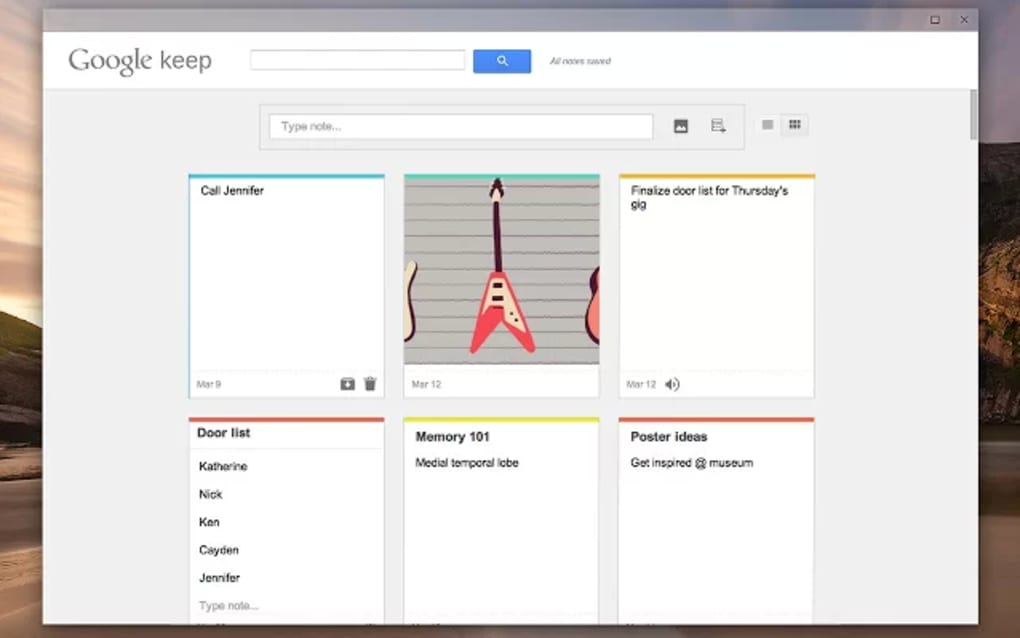
- Customizable note colors, backgrounds, and labels for visual organization.
- Checklists with hierarchical indentation for complex task breakdowns.
- Reminders that sync with Google Calendar for time‑based alerts.
- Voice‑to‑text conversion for hands‑free note capture.
- Secure storage backed by Google’s enterprise‑grade security infrastructure.
How to Install Google Keep on Windows
Google Keep does not require a traditional installer; it runs as a progressive web app (PWA) that can be “installed” from the Chrome browser. Follow these steps for a quick setup:
- Open Chrome and navigate to keep.google.com.
- Sign in with your Google account if prompted.
- Click the three‑dot menu in the upper‑right corner of Chrome.
- Select Install Google Keep. Chrome will download a small shortcut and create a dedicated window that behaves like a native app.
- The app will appear in your Start menu and can be pinned to the taskbar for instant access.
After installation, the first note you create is automatically saved to the cloud, ensuring you never lose data even if your device crashes. The app also respects Windows’ dark‑mode settings, providing a comfortable visual experience in low‑light environments.
Everyday Usage Tips
To get the most out of Google Keep, start by assigning a distinct color to each project—red for urgent tasks, blue for reference material, etc. Use labels such as “Research,” “Personal,” or “Meeting” to filter notes quickly. When you need a detailed document, select a note, click the three‑dot menu, and choose Copy to Google Docs.
The note instantly opens in Docs, preserving formatting and allowing you to expand it into a full‑fledged report. For collaborative brainstorming, add teammates as collaborators; they receive an email invitation and can edit the note in real time, with changes highlighted by their Google profile picture. Finally, set reminders by clicking the bell icon; you can choose a specific date, time, or even a location‑based trigger that activates when you arrive at a mapped place.
Compatibility, Pros & Cons, and Frequently Asked Questions
System Compatibility
Google Keep’s Windows version runs on any 64‑bit Windows 10 or later system with the latest version of Google Chrome installed. Because it is a web‑based PWA, the app inherits Chrome’s security updates automatically, ensuring a secure environment without the need for separate patch management. The same notes are accessible on Android 5.0+, iOS 11+, macOS 10.12+, and any modern browser (Edge, Firefox, Safari) that supports PWA standards.
Pros
- Completely free with a Google account – no hidden fees.
- Instant cloud sync eliminates data loss and enables cross‑device access.
- Simple, uncluttered UI that reduces learning curve for new users.
- Robust collaboration tools that work in real time.
- Built‑in OCR and voice transcription expand capture options.
- Deep integration with Google Workspace accelerates workflow.
- Customizable colors, labels, and backgrounds keep notes visually organized.
- Reminders sync with Google Calendar for unified task management.
Cons
- Limited advanced formatting – not suited for complex document creation.
- No native Windows desktop installer; relies on Chrome’s PWA support.
- Search functionality, while solid, can struggle with very large note libraries.
- Offline access is possible but requires prior sync; new notes created offline sync later.
- Feature set is intentionally minimal; power users may outgrow it quickly.
FAQ – Your Google Keep Questions Answered
Is Google Keep really free, or are there hidden costs?
Google Keep is completely free for anyone with a Google account. All core features—including notes, lists, voice memos, OCR, and collaboration—are available without charge. A paid “Google Workspace” subscription only adds business‑grade admin controls and larger storage limits, but the app itself remains free.
Can I use Google Keep without an internet connection?
Yes. Once you have opened the app and synced at least once, notes you previously accessed are cached locally. You can create new notes offline, and they will automatically sync to the cloud the next time you connect to the internet.
How does Google Keep handle security and privacy?
All data is stored in Google Drive and protected by Google’s industry‑standard encryption both in transit and at rest. Two‑factor authentication (2FA) on your Google account adds an extra layer of protection, and you can control sharing permissions for each note individually.
Can I integrate Google Keep with other Google apps automatically?
Absolutely. You can drag a note into Google Docs, Sheets, or Slides, or use the “Copy to Google Docs” option to create a full document. Reminders you set in Keep appear in Google Calendar, keeping your schedule unified.
Is there a way to export all my Google Keep notes?
Google provides a Takeout service that lets you export Keep data in JSON or HTML format. Navigate to Google Takeout, select “Keep,” and download a compressed file containing all your notes, images, and attached files.
Conclusion & Call to Action
Google Keep stands out as a refreshingly simple yet surprisingly capable note‑taking tool for Windows users who value instant access, real‑time collaboration, and seamless integration with the broader Google ecosystem. Its free pricing, secure cloud storage, and cross‑platform availability make it an ideal companion for students, freelancers, and enterprise teams alike. While power users may eventually need a more feature‑rich editor, Keep’s minimalist design ensures that everyday tasks—from grocery lists to meeting brainstorming—are captured quickly and stay organized without the overhead of complex software.
Ready to streamline your digital note‑taking? Download Google Keep for Windows today and start creating, sharing, and syncing your ideas instantly. Experience the freedom of a cloud‑first notebook that works wherever you are—whether you’re at a desk, on the go, or collaborating with teammates across the globe.







